


PDF Pro : Reader&Editor
3.830.00 Reviews
App Specs
- Version
- 1.0.4
- Updated On
- License
- Free
- Downloads
- 500,000+
- Developer
- FENGMAIJI
- Categories
- Productivity
- Platform
- Android
Screenshots
 Analysis by AppCompare
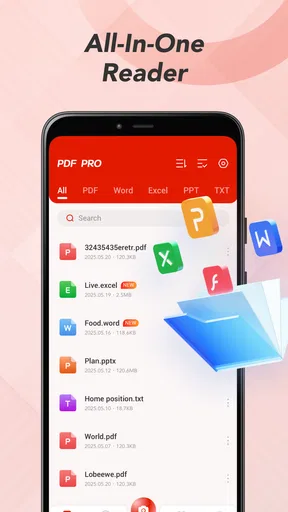
I usually judge an office app by what happens in the first few minutes: can I open a document without hunting through menus, can I move between file types without confusion, and can I recover quickly when a file refuses to load? PDF Pro : Reader&Editor, developed by FENGMAIJI, is aimed at that everyday problem. It is a free productivity app for reading common office files, with PDF at the center and support for DOCX, XLSX, PPT, and TXT documents.
That broad approach is appealing if your phone regularly becomes an emergency desk. I can imagine using it to check a PDF attachment, glance at a spreadsheet while away from a computer, or read a text document without installing a separate viewer for each format. At the same time, the name suggests more than the confirmed store summary really promises, so I would approach it primarily as a convenient document reader and viewer rather than automatically treating it as a complete replacement for desktop office software.
Where the first use can become confusing
The biggest practical challenge with an all-document app is not always the document itself. It is knowing which app should open it, where the file is stored, and whether the phone has actually finished downloading it. When several file managers, cloud folders, messaging apps, and office tools are installed, a document can appear to be missing even though it is simply sitting in a different location.
My first recommendation is to begin with a file you already know is stored locally. That removes one layer of uncertainty. Open the phone’s file manager, locate a PDF or DOCX file, and use the normal share or open-with action to choose PDF Pro : Reader&Editor. This is a cleaner test than starting with an attachment inside a messaging app, where the file may still be downloading or may only be available as a temporary preview.
The same idea applies to spreadsheets and presentations. A file that opens correctly in one app may have been saved in a format that another reader handles differently. If a document does not appear in the app’s browsing screen, I would check the original folder first instead of assuming the app has deleted or rejected it. Search by the file name, then confirm that the extension is really PDF, DOCX, XLSX, PPT, or TXT.
There is also a small but important distinction between reading and editing. The product is presented as a PDF reader and editor, but a reader that can display many formats is not necessarily a full authoring suite. I would not plan a complex report, a formula-heavy workbook, or a carefully designed presentation around a mobile viewer unless I had already tested the exact file. For quick inspection, the wide format support is useful; for serious creation, a dedicated office editor remains the safer choice.
Its audience is broad. The content rating is Everyone, and the app is available free of charge, which makes it easy to try for school documents, household paperwork, work attachments, and personal records. I still would not install it merely because a file exists somewhere on the phone. The best reason is convenience: one place to inspect several familiar formats when a full computer is not nearby.
Worth Reading Before You Choose

EA SPORTS FC Mobile 26 Is a Bigger Football Game, but It Takes Time

Flipboard Shows What News Apps Must Do Beyond the Feed

Switching to Android Auto Means Rethinking Your Driving Routine

Google Calendar Makes a Crowded Week Easier to Manage

Ludo King Makes the Most of the Minutes Between Plans

Baby Panda World Brings Quick Play to Modern Phones, but Its Game Library Feels Busy
What I check before blaming the viewer
When a document will not open, I use a simple sequence. First, I confirm that the file finished downloading. Second, I try opening a second document of the same type. Third, I check whether the original file opens in another trusted viewer. This separates a problem with the individual file from a broader problem with the app or phone.
A damaged attachment, an incomplete download, or an unusual export can fail in several apps. A password-protected document can also require information that the viewer cannot infer. If another PDF opens normally but one particular file does not, I treat that as a file-specific issue rather than a reason to reinstall everything.
File names can create avoidable trouble too. Very long names, duplicate copies, and files saved with an unexpected extension make manual browsing harder. I find it more reliable to rename a test copy clearly, keep it in a simple local folder, and then open it again. This is especially helpful when a document came from an email or chat application and several versions have accumulated.
Setup checks that save time later
After installing the app, I would make one small test library: a PDF, a DOCX document, an XLSX workbook, a PPT presentation, and a TXT file. The point is not to test every possible document. It is to learn how this particular phone presents each format and whether the files are easy to find afterward.
That test also reveals an important trade-off. A single viewer reduces app switching, but it may not offer the same depth as a specialist tool. A dedicated PDF application may be better for advanced annotation or document workflows, while a full office suite may be stronger for editing formulas, layouts, and slide elements. PDF Pro : Reader&Editor makes more sense when the priority is access and convenience across formats.
I would also keep the first test files unimportant. Do not begin with the only copy of a contract, an irreplaceable scan, or a workbook containing critical work. Open duplicates or sample documents first. This is sensible with any new document application because display behavior can vary between files, even when they share the same extension.
The current version is 1.0.4, and the app requires Android 8.0 or later. That makes the operating-system check straightforward: before troubleshooting a file, confirm that the phone meets the minimum requirement and that the app has been installed normally. If the device is much older or has limited free storage, general phone performance can affect opening and switching between documents even when the app itself is functioning properly.
I would not overcomplicate setup with unnecessary changes. Start with the default installation, test local files, and only then decide whether the app fits your routine. Changing several phone settings at once makes it difficult to know what fixed a problem. A calm, one-change-at-a-time approach is more useful than immediately clearing every app or moving files between multiple folders.
A realistic everyday workflow
Picture a common situation: I am leaving work when someone sends me a PDF containing a form and a DOCX version of the same material. I need to read the instructions, check a few details, and decide whether I need to respond immediately. PDF Pro : Reader&Editor is well suited to the first part of that task. I can use one app to inspect both files instead of guessing which viewer supports each attachment.
If the files arrive through a chat app, I first wait for the download indicator to finish. Then I open the document through the file action rather than relying only on the chat preview. If the document loads, I read it in the app and return to the original message when I need the sender’s context. This avoids confusing a temporary preview with a saved, accessible copy.
For a spreadsheet, my expectation would be more modest. I would use it to read headings, check visible values, and understand the general contents while away from a computer. I would be cautious about making important changes unless the editing behavior had already been tested with a duplicate. Mobile viewing is convenient, but a workbook’s formulas, formatting, and layout can be more demanding than a simple text file.
The same principle applies to presentations. Checking a slide deck before a meeting is a sensible use. Rebuilding a presentation on a phone is a different task and may be better handled by a dedicated presentation editor. This distinction is one of the most useful ways to avoid disappointment: use the app as a fast inspection point across formats, not as proof that every desktop workflow has been reproduced.
Recovering a workflow when a file gets stuck
When opening stalls, I would first close the document and retry once. If that fails, I would return to the source folder and open the file again from there. This simple reset can distinguish a temporary handoff problem from a repeatable compatibility issue.
If the same file still fails, I would create or obtain a fresh copy rather than repeatedly tapping the same item. A second download can resolve an incomplete transfer. If possible, I would also ask the sender to export the document again in a standard format. That is particularly reasonable when the file was generated by an unusual office program or passed through several services before reaching the phone.
For a document that opens but looks wrong, I would compare it with the original on a computer or in the application that created it. Pay attention to missing fonts, altered page breaks, shifted tables, and spreadsheet columns that do not fit comfortably on a small screen. These are not necessarily signs that the file is unusable; they may simply show the difference between mobile viewing and desktop layout.
I would avoid editing the only original while diagnosing the problem. Keep the source untouched and work from a copy. This is a practical safeguard for any document viewer, especially when the app’s role in the workflow is mainly reading and checking. It also makes it easier to compare the original and the revised file if something changes unexpectedly.
When the app is not the cause
It is easy to blame the viewer because it is the last thing on screen. In practice, the source can be the real issue. A file may be incomplete, encrypted, exported incorrectly, or dependent on formatting that is not available on the phone. If only one document fails while others of the same type open, that pattern matters more than the error message alone.
Storage and device condition can matter as well. A phone with very little free space may struggle with downloads and temporary document handling. A busy device may also make switching between a chat app, file manager, and viewer feel unreliable. Before reinstalling, I would close unrelated apps, confirm the file is stored locally, and try a smaller test document.
Network access is another source of confusion when the file has not actually been saved to the device. A cloud or messaging preview can look like a document is ready even when the full content still needs to be retrieved. I would finish the download on a stable connection, then retry from the local file location. This keeps the test focused on document viewing rather than network transfer.
There is also a security judgment to make. Documents can contain private financial, medical, school, or work information. I would use the app for files I am comfortable opening on that phone and avoid casually forwarding sensitive copies while troubleshooting. The free price and broad format support make trying it easy, but they do not remove the need to handle personal documents carefully.
The app has attracted an average rating of 4.0 from over eight hundred ratings, with twenty written reviews. I read that as a sign of useful everyday appeal rather than a guarantee that every file will behave identically. Its reach is also substantial, with over five hundred thousand installs, so it is clearly being tried by a large group of Android users. Those figures help establish context, but my own decision would still depend on whether the formats I use most often open cleanly.
Who should choose it, and who should skip it
I would recommend it to someone who receives mixed office files and mainly needs to read them quickly. Students checking handouts, workers reviewing attachments during travel, and households opening forms or statements can all benefit from a single lightweight starting point. The strongest use case is not advanced document production; it is reducing the friction between receiving a file and understanding what is inside.
I would be more cautious for users who need dependable, complex editing. If your day revolves around spreadsheet formulas, tracked changes, carefully preserved page layouts, or presentation design, a specialist office suite is likely the better primary tool. You may still keep this app as a backup viewer, but I would not make it the only application in a high-stakes document workflow without testing your real files first.
It may also be a poor fit if you prefer a narrow app with one clear purpose. Supporting PDF, DOCX, XLSX, PPT, and TXT files is convenient, but it can make the experience feel broader than deep. People who want a highly focused PDF annotation environment may prefer a dedicated PDF product, while those who need collaboration and full document creation may be happier with an established office platform.
My practical verdict after using it as a document hub
PDF Pro : Reader&Editor is most convincing as a free, general-purpose document access point. I like the idea of opening several familiar office formats from one place, especially when the alternative is installing or switching between separate viewers. The app’s Everyone rating, Android 8.0 requirement, and current version 1.0.4 make the basic compatibility question easy to check before trying it.
Its limits are equally important. I would not assume that broad format support equals perfect rendering, complete editing, or desktop-level control. The safest workflow is to test representative files, keep originals intact, and use a specialist editor when the document’s formatting or content is important. Those habits make the app more useful because they match its convenience with realistic expectations.
For me, the deciding question is simple: do I need to inspect many kinds of documents quickly, or do I need to create and manage complex office files professionally? If the first answer is yes, PDF Pro : Reader&Editor is worth trying as a practical mobile reader. If the second answer is yes, I would choose a fuller office suite and keep this app only if it proves reliable with my everyday attachments.
Overall, I see it as a helpful utility rather than a complete replacement for a computer. Its best quality is the reduction of small annoyances: one app to try when a PDF, word-processing file, spreadsheet, presentation, or text document arrives unexpectedly. The smartest way to use it is as a fast first stop, not as the final authority for every document workflow.
Pros
- Opens PDFs quickly
- even when switching between several documents.
- Useful annotation tools make highlighting and note-taking straightforward.
- Supports filling in many standard PDF forms directly on the device.
- Document search helps locate words or sections without scrolling manually.
- Clean interface makes common reading and editing actions easy to find.
Cons
- Some advanced editing tools may require a paid subscription.
- Large or image-heavy PDFs can use considerable storage and memory.
- OCR accuracy may vary with blurry scans or unusual document layouts.
- Exported files may need checking for formatting changes after editing.
- Cloud features can depend on account access and a stable internet connection.
FAQs for PDF Pro : Reader&Editor
What is PDF Pro: Reader&Editor, and what can I use it for?
PDF Pro: Reader&Editor is designed to help users open, read, organize, and work with PDF documents on a mobile device. Depending on the version and platform, it may support tools such as searching within files, zooming, page navigation, annotations, highlighting, signing, and basic editing. It is useful for studying, reviewing work documents, completing forms, and managing PDFs without relying on a computer.
Can PDF Pro: Reader&Editor edit existing PDF documents or only read them?
The application is primarily intended for viewing PDFs, but it may also include editing features such as adding text, notes, drawings, highlights, signatures, or images. Users should remember that mobile PDF editors often provide lighter editing capabilities than desktop software. Changing the original layout, modifying complex graphics, or editing scanned text may require additional tools or OCR support, so checking the available features before subscribing is recommended.
Does PDF Pro: Reader&Editor work offline?
PDF Pro: Reader&Editor can generally be used offline for opening and reading files that have already been downloaded or stored on the device. Basic actions such as page navigation, zooming, and many annotations may also work without an internet connection. However, cloud synchronization, online file imports, sharing services, advertisements, account functions, or certain premium tools may require connectivity. Offline behavior can vary by operating system and app version.
Is PDF Pro: Reader&Editor free to download, and are there in-app purchases?
The app may be available as a free download, but some advanced functions can be restricted behind a premium plan, one-time purchase, or subscription. These limitations may involve editing, exporting, document conversion, cloud storage, or removing advertisements. Before confirming a purchase, review the pricing screen, trial conditions, renewal terms, and cancellation instructions in the Google Play Store or Apple App Store.
Is PDF Pro: Reader&Editor safe for private or confidential documents?
PDF Pro: Reader&Editor can be convenient for handling personal files, but users should still review its privacy policy and requested permissions before importing confidential material. Avoid uploading sensitive documents to online services unless you understand how they are processed and stored. For contracts, identity documents, financial records, or business files, use strong device security, keep the app updated, and verify whether sharing or cloud features are enabled.


